ScribePal is an Open Source intelligent browser extension that leverages AI to empower your web experience by providing contextual insights, efficient content summarization, and seamless interaction while you browse.
⭐️ Love this project? Please consider starring the repository on GitHub and supporting development to help me continue building amazing features!
- ScribePal
ScribePal works with local Ollama models, ensuring that all AI processing and messaging is conducted within your local network. Your private data remains on your system and is never transmitted to external servers. This design provides you with full control over your information and guarantees that nobody outside your network has access to your data.
It is compatible with all Chromium and Gecko-based browsers: Chrome, Vivaldi, Opera, Edge, Firefox, Brave etc.
- AI-powered assistance: Communicates with an AI service (using ollama) to generate responses.
- It is PRIVATE: Because it communicates with a local (within your LAN) Ollama service and LLMs, all your information stays private.
- Theming: Supports light and dark themes.
- Chat Interface: A draggable chat box for sending and receiving messages.
- Model Management: Select, refresh, download, and delete models.
- Per-Model Settings: Fine-tune each model individually via the ⚙️ icon next to the model selector — enable Thinking for reasoning-capable models, override the sampling Temperature (0–2), and set the Context size (
num_ctx), bounded by the maximum the model itself reports. Settings are saved per model and shared across every tab and chat box. - Reasoning Visibility: When a model streams its reasoning, it's shown live in a collapsible "Thought process" panel above the answer.
- Context Usage Gauge: A circular indicator to the right of the model selector shows how much of the context window the conversation is using, based on the exact token counts Ollama reports for the last response. It shifts from green to amber to red as the window fills.
- Advanced Capture Tools: Options for capturing both text and images are available. Captured content is inserted directly into your chat using special tags (
@captured-textfor text and@captured-imagefor images). - Prompt Customization: Adjust and customize prompts to instruct the AI model on how to generate responses.
- File Attachments: Upload files to the chat interface and reference them in discussions using the
@attached-filestag.
Ensure that the Ollama host is installed (and configured) on your local machine or available on your LAN by following the next steps:
-
Install Ollama on your host.
-
Edit the systemd service file by running:
sudo nano /etc/systemd/system/ollama.service
-
Add the following environment variables in the
[Service]section:Environment="OLLAMA_HOST=0.0.0.0" Environment="OLLAMA_ORIGINS=chrome-extension://*,moz-extension://*"Note: The
OLLAMA_HOST=0.0.0.0setting is optional if the Ollama server is running on localhost and you do not need the Ollama server to be accessed from LAN. -
Save the file, then reload and restart the service:
sudo systemctl daemon-reload
sudo systemctl restart ollama.service
-
Install Ollama on your host.
-
Set the environment variables by adding them to your shell profile:
echo 'export OLLAMA_HOST=0.0.0.0' >> ~/.zshrc
echo 'export OLLAMA_ORIGINS="chrome-extension://*,moz-extension://*"' >> ~/.zshrc
source ~/.zshrc
Note: Use
~/.bash_profileif you're using bash instead of zshNote: The
OLLAMA_HOST=0.0.0.0setting is optional if the Ollama server is running on localhost and you do not need the Ollama server to be accessed from LAN. -
Restart the Ollama application for the changes to take effect.
-
Install Ollama on your host.
-
Set the environment variables:
OLLAMA_HOST=0.0.0.0
OLLAMA_ORIGINS=chrome-extension://*,moz-extension://*
You can do this via the System Properties or using PowerShell.
Note: The
OLLAMA_HOST=0.0.0.0setting is optional if the Ollama server is running on localhost and you do not need the Ollama server to be accessed from LAN. -
Restart Ollama app.
Before installing ScribePal, ensure that you have Node Version Manager (nvm) installed. You can install nvm by following the instructions at nvm-sh/nvm. nvm helps you easily switch to the Node.js version specified in .nvmrc.
-
Clone the repository:
git clone https://github.com/code-forge-temple/scribe-pal.git cd scribe-pal -
Set the Node.js version:
- For Unix-based systems:
nvm use
- For Windows:
nvm use $(cat .nvmrc)
- For Unix-based systems:
-
Install dependencies:
npm install
To build the project for development, run:
A. For Chromium-based browsers like Chrome, Vivaldi, Edge, Brave, Opera and others:
npm run dev:chromeB. For Gecko-based browsers like Firefox, Waterfox, Pale Moon, and others:
npm run dev:firefoxTo build the project for production, run:
-
For Chromium-based browsers:
npm run build:chrome
-
For Gecko-based browsers:
npm run build:firefox
To lint the project, run:
npm run lintFollow these installation intructions.
If you're not a developer, you can choose one of the following methods:


Note
Releases available in the browser stores might be slightly out of sync with the GitHub releases. This can be due to the review process, packaging delays, or manual submission requirements. For the most up-to-date version, please refer to the Download from Releases section.
Visit the Releases page to download the latest packages:
- For Chromium-based browsers, download
chrome.zip. - For Gecko-based browsers, download
firefox.zip.
After downloading, unzip the package and install the extension manually.
To install the the compiled extension, for:
-
Chromium based browsers you need to go to
chrome://extensions/(in Chrome browser)vivaldi://extensions/(in Vivaldi browser)opera://extensions/(in Opera browser)- etc.
and activate the
Developer Mode, thenLoad unpackedthen select<scribe-pal folder>/dist/chromefolder. -
For Gecko-based browsers, navigate to
about:debugging#/runtime/this-firefox- etc.
and click on
Load Temporary Add-on…then select<scribe-pal folder>/dist/firefoxfolder.
-
Open the Extension Popup:
- Once installed, click the extension icon in your browser’s toolbar.
- The popup allows you to set your configuration options.
-
Configure Settings:
- Ollama Server URL:
Enter the URL for your Ollama API server in the provided text field and click “Save”. - Theme Selection:
Use the toggle switch to activate the dark theme as desired.
- Ollama Server URL:
-
Launch the Chat Interface:
- Click “Show ScribePal chat” in the popup or press Ctrl+Shift+Y.
- A responsive, draggable chat box will open on the active webpage.
- Use the chat interface to send messages to the Ollama AI service, review conversation history, and manage models.
- Additional features include capturing selected HTML content (that can be referenced in the discussion with
@captured-texttag), capturing an image of an area on the page (that can be referenced in the discussion with@captured-imagetag) for VISION LLMs, and customizing prompts (to instruct the loaded model on how to answer). - You can also attach files to the chat using the Attach Files button. Uploaded files can be referenced in the discussion using the
@attached-filestag. - Click the ⚙️ icon next to the model selector to open that model's settings: toggle Thinking on for reasoning-capable models, optionally override the Temperature used for sampling, and optionally set the Context size.
-
Reviewing the Model's Reasoning:
- For models that support it, the reasoning stream appears above the answer in a collapsible "Thinking… / Thought process" panel — expand it at any time to read the full chain of thought.
-
Tracking Context Usage:
- After each response, a small circular gauge appears to the right of the model selector showing how much of the context window the conversation occupies. Hover it for the exact token count and limit.
- The figures come from Ollama itself, so they are exact rather than estimated — but they only update once a response completes.
- Note on the limit: Ollama does not report the context window it actually allocated. Unless you set a Context size in the model's settings, it uses its own default and the gauge assumes 4096. If your server sets
OLLAMA_CONTEXT_LENGTH, or you want the gauge to be exact, set the Context size explicitly — the slider's maximum is the model's real limit, read from Ollama. - When the conversation exceeds the window, the ring turns red: Ollama is silently dropping the oldest messages from that point on.
-
Interacting with the Chat:
- Type your query in the chat input and press Enter or click the
Sendbutton. - The AI response is rendered below the input as markdown.
- You can manage (delete or refresh) available Ollama models using the available controls in the model select dropdown.
- Type your query in the chat input and press Enter or click the
Some short video tutorials on how to use the plugin:
- Release 1.0.x:
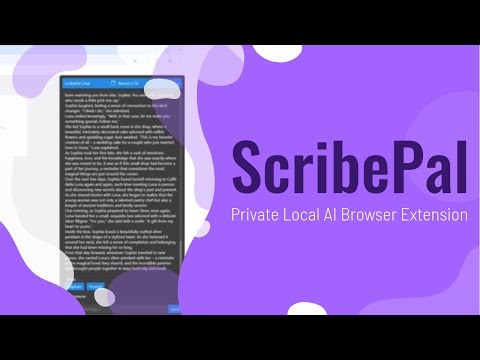
- Release 1.2.x:
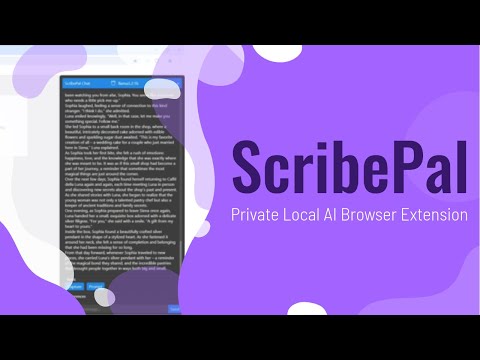
This project is licensed under the GNU General Public License v3.0. See the LICENSE file for more details.
✦ Agentic Signal – Visual AI agent workflow automation platform with local LLM integration - build intelligent workflows using drag-and-drop interface, no cloud dependencies required.
✦ Local LLM NPC – An interactive educational game built for the Google Gemma 3n Impact Challenge.
✦ Circuit Sketcher - Obsidian Plugin – A plugin for Obsidian to draw circuits on a canvas.
✦ Circuit Sketcher - Web App – A web application to draw circuits on a canvas, based on circuit-sketcher-core.