English | 日本語
A Windows desktop app that lets an ordinary Microsoft 365 user reclaim OneDrive for Business storage by moving old file versions to the recycle bin — no admin rights, no app registration, no Client ID.
It signs in with your normal browser session, ranks past versions by size, and moves the ones you pick to the recycle bin, where they stay restorable. English and Japanese interface.
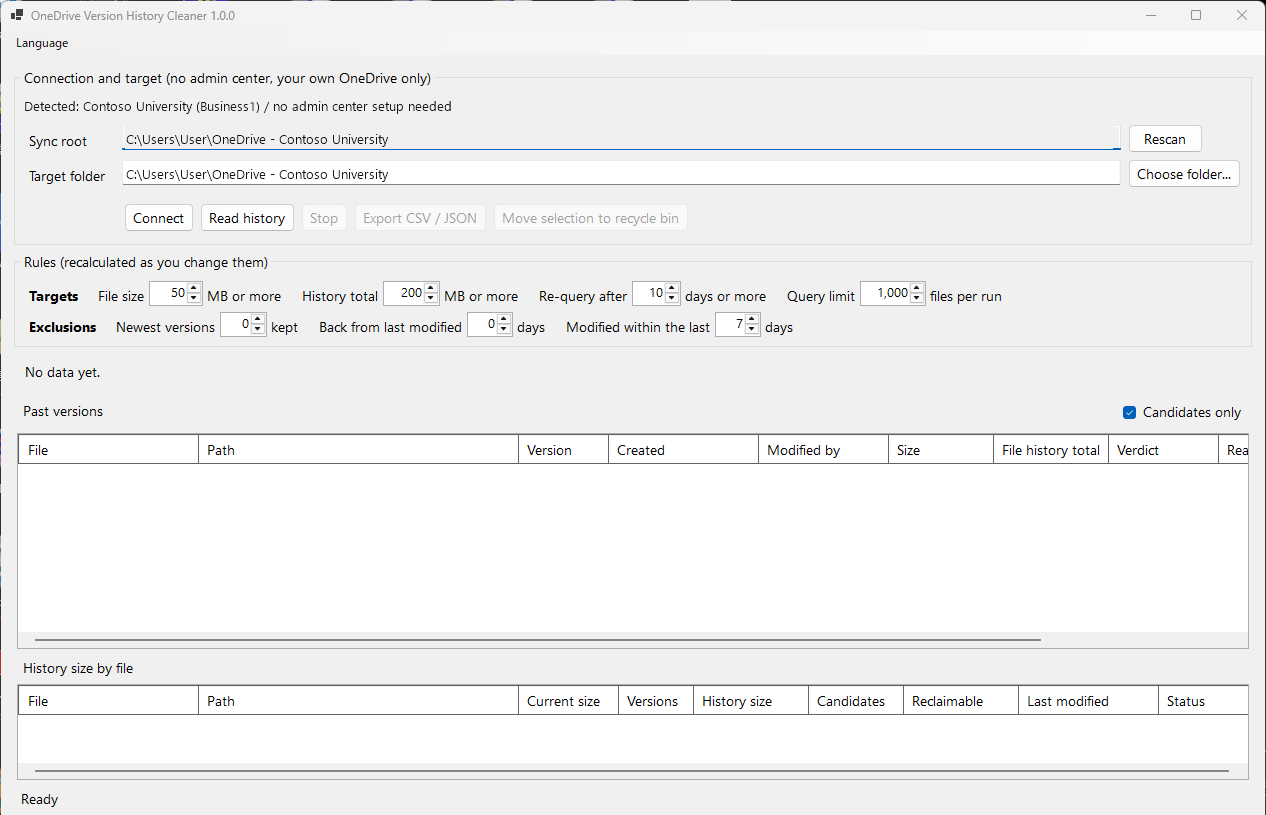
The window as it opens. Past versions on top, history size per file underneath. The account name and paths in this picture have been replaced.
On a work or school Microsoft 365 account, your OneDrive quota is set by your organisation and you cannot raise it yourself. SharePoint keeps version history, and for many file types it keeps every version in full. Save a 1 GB file fifty times and the history alone can cost tens of gigabytes.
Clearing that out is harder than it should be:
- Explorer's right-click menu works on one file at a time
- There is no way to search across the library for what is actually consuming the space
- The admin center's bulk trim needs administrator rights, and it deletes permanently, bypassing the recycle bin
- The PowerShell scripts that circulate mostly delete all history at once, which is not what you want when you only mean to remove the big old versions
So there is a gap: an ordinary user, with no admin rights, who wants to pick off the large items safely. That is what this fills.
- Walks your OneDrive folder and lists past versions largest first
- Select several with Shift or Ctrl and move them to the recycle bin in one go
- Narrow the targets by rules: versions kept, age, file size, total history size
- Export the analysis to CSV and JSON
- Record every deletion as JSON Lines
These are deliberately not implemented:
- Deleting a file itself
- Deleting the current version
- Permanent deletion (anything that bypasses the recycle bin)
- Acting on other people's files using administrator rights
There is nothing to register in Azure and no Client ID to obtain. You sign in to Microsoft 365 normally, inside the app's WebView2, and the app then calls the SharePoint REST API same-origin from that browser session. It never shows you a screen asking for a password or an MFA code.
No OAuth application consent is used, so no consent prompt appears at all.
The app's own code never reads your authentication cookies, but the WebView2 profile does stay
on disk. To sign out, close the app and delete
%LOCALAPPDATA%\OneDriveVersionCleaner\WebView2\.
Versions are moved to the OneDrive recycle bin, and you can restore them from the web interface if you change your mind — in contrast to the admin center's trim, which deletes permanently.
Note that items in the recycle bin still count against your quota. To actually get the space back, empty the recycle bin afterwards.
Every run verifies, automatically, that removing past versions did not touch your current files. For each file it records existence, last-modified time and size immediately before and after the move and compares them. If any of the three changed, the run stops there. A local file that could not be read is not treated as "unchanged" either.
At tens of thousands of files, asking about each one runs straight into SharePoint Online's request limits. So the app decides locally which files to ask about. It never asks the service to enumerate the library.
| Stage | What happens | Network |
|---|---|---|
| 1 | Walk the local sync folder; keep only files at or above the size threshold | none |
| 2 | Keep only those whose stored answer has aged out and that have changed | none |
| 3 | Take the largest ones, up to the per-run limit (1,000 by default) | none |
| 4 | Show the resulting count and ask the user to agree (above 200) | none |
| 5 | Read file information and version list for each candidate | 2 requests each |
At most two requests are in flight at once. The total is settled before the first one is sent, so you know the size of the job before the scan begins.
One run asks about at most 1,000 files by default. Around two thousand goes through; ten
thousand at once comes back as server errors. Whatever does not fit is left for a later run —
nothing is stored for those files, so the next run selects them again. To read the rest, simply
run the scan again. The limit is on screen as Query limit, and 0 lifts it.
The selection is by size, largest first, so the files with the most reclaimable history are asked about before anything else — which also means a run cut short by throttling has still read the ones that mattered.
Version history that has been read once is stored and reused. If the service throttles the app, it
waits as instructed by Retry-After and gives up once the total wait passes its limit.
- Windows
- The Microsoft Edge WebView2 runtime (already present on Windows 11)
- OneDrive for Business (a work or school account), synced
- .NET 10 SDK — only if you build from source
The sync root is detected automatically from the Windows registry.
- Download
OneDriveVersionCleaner-win-x64.zipfrom Releases - Unpack it wherever you like
- Run
OneDriveVersionCleaner.exe
There is no installer. The .NET runtime is bundled, so it runs on a machine with no .NET installed. Nothing is written to the registry or to Program Files.
To remove it, delete the folder you unpacked. Settings, cache and logs live in
%LOCALAPPDATA%\OneDriveVersionCleaner\ and can be deleted separately
(Where things are stored).
The exe is not Authenticode signed, so SmartScreen warns on first run. The SHA-256 of the zip is published next to it in the same release.
Get-FileHash .\OneDriveVersionCleaner-win-x64.zip -Algorithm SHA256git clone https://github.com/seto77/OneDriveVersionCleaner.git
cd OneDriveVersionCleaner
dotnet build
dotnet run --project src/OneDriveVersionCleaner.AppIn VS Code, open the folder and press F5.
- Press
Connectto check the connection (one request) - Set the
Target folder(the sync root by default) - Press
Read historyand sign in with your organisation account - Select the versions to move in the upper grid and press
Move selection to recycle bin
Start with a small test folder. A step-by-step procedure is in RESTART_TEST_INSTRUCTIONS.md (Japanese).
English and Japanese. On first run the app follows the language Windows is displayed in: Japanese on a Japanese system, English otherwise.
Switch at any time from the 言語 / Language menu. No restart is needed, and the choice is
remembered, in %LOCALAPPDATA%\OneDriveVersionCleaner\ui-language.json.
Setting Language to "en" or "ja" in appsettings.json fixes the starting language for
anyone who has not yet chosen one. Once the menu has been used, that choice wins.
Dates and numbers follow the regional settings of Windows, not the interface language. The CSV and JSON exports and the deletion log always use English identifiers.
pwsh scripts/publish.ps1This runs the tests, produces a single self-contained exe, packs it into a zip and writes the
SHA-256. Nothing beyond the SDK is required — the compression is done by .NET's own ZipFile.
Measured: 49.7 MB unpacked, 44.3 MB zipped. The single-file bundle is compressed, which brings the unpacked size down from 112 MB to 50 MB; the zip is about 44 MB either way, so the download costs the same and the folder the user keeps is smaller.
Windows ships no .NET runtime, so anything other than a self-contained build would ask every user to install one first.
The archive contains a single folder, so unpacking does not scatter files:
OneDriveVersionCleaner-win-x64/
├─ OneDriveVersionCleaner.exe
├─ appsettings.json
├─ README.md
├─ README.ja.md
├─ LICENSE.md
└─ THIRD-PARTY-NOTICES.md
THIRD-PARTY-NOTICES.md ships with it because the bundle contains the .NET runtime and because the WebView2 terms require the notice to travel with a redistributed binary. Include it if you redistribute a build.
Every value can be changed on screen, and hovering over it explains what it does. 0 turns a rule off.
Targets — which files are looked at in the first place.
| On screen | Default | Meaning |
|---|---|---|
| File size | 50 MB or more | Files whose current size is below this are excluded entirely |
| History total | 200 MB or more | Files whose history adds up to less than this are excluded entirely |
| Re-query after | 10 days or more | Ask about a file again only once its stored answer is this old and the file has changed |
| Query limit | 1,000 files per run | The most files one run may ask about. Largest first; the rest wait for the next run |
Exclusions — of the files examined, which versions are kept.
| On screen | Default | Meaning |
|---|---|---|
| Newest versions | 0 kept | How many past versions to keep, counting from the newest |
| Back from last modified | 0 days | How far back from the file's own last modification versions are kept |
| Modified within the last | 7 days | Files modified this recently are excluded entirely |
The first two default to 0 on purpose. Neither of them does anything until you set it. If there are versions you want kept, set them before you run. The current version, versions with an unknown timestamp or unknown size, and versions the API reports as undeletable are always kept regardless.
Those two rules are OR'd: a version kept by either one is not a candidate.
The age rule is measured from the file's own last-modified time, not from now. A file that stopped being edited long ago still keeps the versions around its final edit.
Selecting a version in the grid overrides the rules. If your selection includes versions the rules would have kept, the confirmation dialog says how many.
%LOCALAPPDATA%\OneDriveVersionCleaner\
├─ Logs\delete-YYYYMMDD.jsonl    what was deleted
├─ Cache\versions-<account>.json version information already read
├─ WebView2\                     the signed-in session
└─ ui-language.json              the interface language you chose
The deletion log records file paths, version ids, sizes, API responses, the state of the local file before and after, and the version of the app that did it. No token, cookie or password is ever written.
The version is also on the title bar. Please quote it when reporting a problem.
The log is opened before the run and each line is written and flushed as it happens, so a run
that dies half way through still leaves an account of what it had already done. A file with no
final runCompleted line means the run did not reach its own end.
If the log cannot be opened, nothing is moved. Versions are not recycled without a record of it.
appsettings.json sets the defaults. See
appsettings.example.json for the available keys.
src/
├─ OneDriveVersionCleaner.Core/            retention, aggregation, deletion plan, cache, query budget, export (no UI)
├─ OneDriveVersionCleaner.Infrastructure/  OneDrive account detection (registry)
└─ OneDriveVersionCleaner.App/             WinForms UI, SharePoint REST session, interface language
tests/                                     unit tests
Retention and the deletion plan are closed inside Core, so they can be verified independently of the interface and the network.
The interface language lives in App/Localization/: SupportedCultures (the languages and the
font each one reads best in), UiLanguage (storing and restoring the choice) and
Localization.Loc(en:, ja:) (a helper that keeps each translation next to its caller). It sits in
the UI project because screen wording is the only thing being translated.
The forms are edited in the Visual Studio designer, which owns their .resx outright — a
translation written there by hand would survive only until somebody next saved the form. So the
design surface carries English and the translation goes over it at run time.
DESIGNER_NOTES.md
(Japanese) has the details.
There is exactly one external dependency, Microsoft.Web.WebView2.
dotnet testTo contribute, see CONTRIBUTING.md. To report a vulnerability, see SECURITY.md.
- There is no code path that deletes a file itself
- There is no code path that deletes permanently
- The current version is never listed, never selectable, and is rejected with an exception when a plan is built
- Immediately before deleting, the file is read again; nothing happens unless its
UniqueIdmatches what the scan saw - Only files the scan resolved on the server can be acted on
- Pressing stop halts new requests and waits for the ones already sent
- After a move, the version list is read back to confirm the versions are gone
- The local current file is compared before and after; if it changed, the rest of the run is abandoned
- Anything that cannot be judged — unknown date, unknown size, failed read — is resolved in favour of keeping
- Deletion addresses a file by
UniqueId, not by path, so a rename or replacement after the confirmation cannot redirect the request at another file - If the record cannot be opened, nothing is moved; each line is written the moment it happens
- The window cannot be closed mid-run: it asks the run to stop and closes once the requests already sent have finished
- Your own OneDrive only. SharePoint team sites, Teams libraries and shared shortcuts are out of scope
- The grid shows the largest 5,000 rows. The CSV and JSON exports contain everything
- There is no resuming an interrupted run
- The interface is available in Japanese and English
This tool deletes file version history. The author accepts no liability for any damage arising from the use of this software. Always confirm the behaviour on a test folder before pointing it at real data.
MIT License — Copyright (c) 2026 Y. Seto
The NuGet packages this depends on carry their own licences, separate from this one.
Microsoft.Web.WebView2 in particular is under Microsoft's own terms. If you build from source,
you accept those terms directly when the package is restored. If you redistribute a built
binary, ship THIRD-PARTY-NOTICES.md with it.